
Notifications
Hashiro keeps you informed about important events through in-app notifications and email alerts, with granular control over what you receive and how.
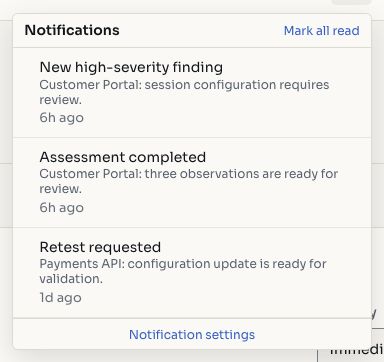
Screenshots use fictional demonstration data.
In-App Notifications
The notification bell icon in the top navigation bar shows your unread notification count. Click it to open the notification panel.
From the panel you can:
- View your recent notifications
- Click a notification to navigate to the related resource
- Mark all as read to clear the unread count
- Mark individual notifications as read
- Delete notifications you no longer need
Notification Categories
Notifications are organized into three categories:
Security
Events related to your security operations:
- Scan completed or failed
- New finding created
- Severity escalated on an existing finding
- Candidate findings requiring review
Account
Events related to team and organization management:
- Team member accepted an invitation
- New member added to the organization
- User role changed
- AI credits granted
- Payment failed
System
Platform-wide announcements and operational notices:
- Platform announcements
- Scheduled maintenance windows
- Digest summaries
Email Notification Preferences
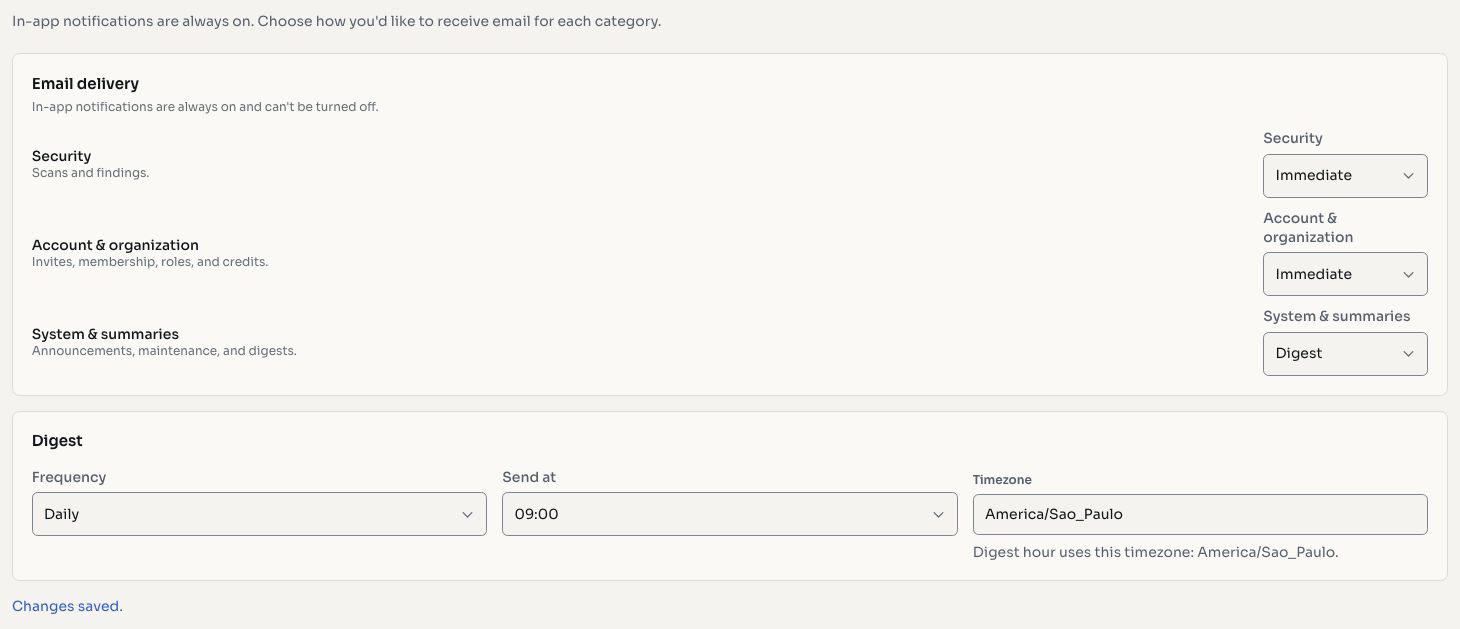
Configure how and when you receive email notifications from the Notification Settings tab in your account.
Per-Category Settings
For each notification category, choose your preferred delivery mode:
| Mode | Behavior |
|---|---|
| Immediate | Receive an email as soon as the event occurs |
| Digest | Batch notifications and receive a summary email at your preferred schedule |
| Off | No email notifications for this category (in-app only) |
Digest Configuration
When using digest mode:
- Frequency: choose daily or weekly digest delivery
- Delivery hour: select what time of day you'd like to receive your digest
- Timezone: set your timezone to ensure accurate delivery scheduling
TIP
Digest mode is useful for reducing email noise while still staying informed. Critical security events can remain on "Immediate" while account and system notifications are batched.
One-Click Unsubscribe
Every notification email includes an unsubscribe link at the bottom. Clicking it will disable email notifications for that category without requiring you to sign in.
Recommendations
| Scenario | Security | Account | System |
|---|---|---|---|
| Active pentester | Immediate | Digest | Off |
| Team manager | Immediate | Immediate | Digest |
| Stakeholder / viewer | Digest | Off | Off |
| Automation account | Off | Off | Off |