
Team & Users
Manage the people who have access to your Hashiro organization. Invite team members, assign roles, and configure individual account settings.
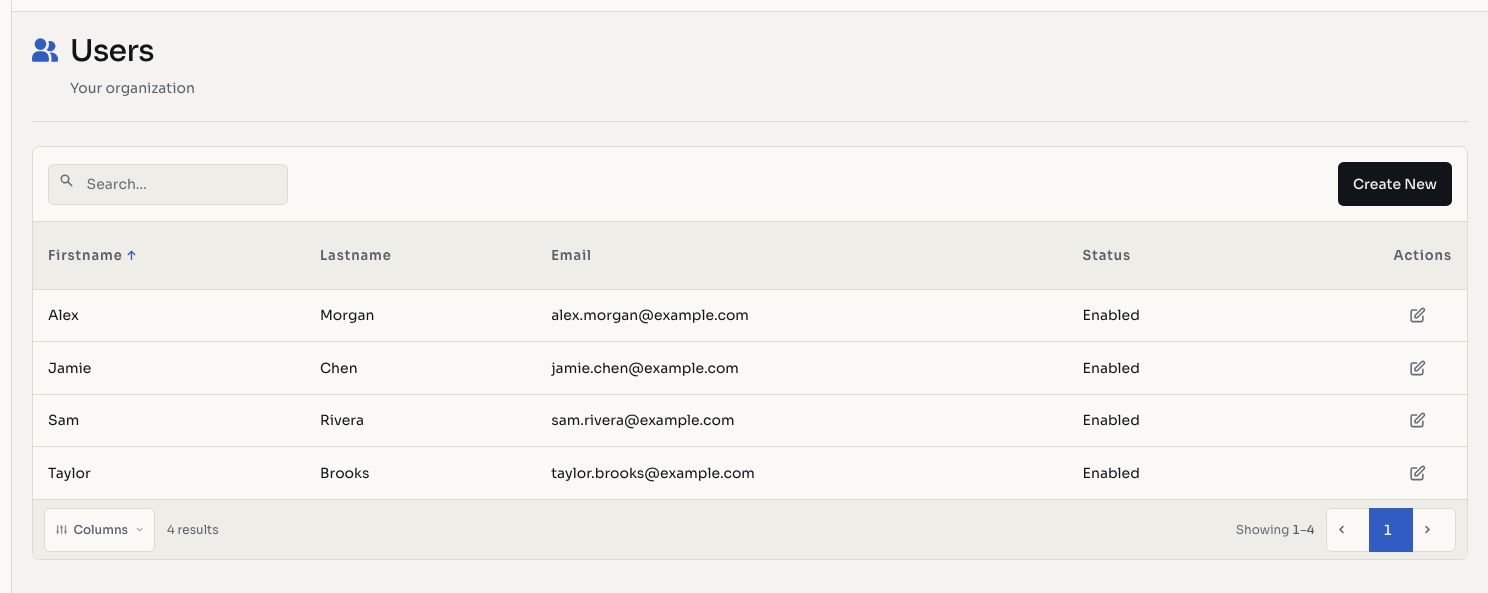
Screenshots use fictional demonstration data.
Viewing Your Team
Navigate to Team in the sidebar to see all members of your organization. The team list shows:
- Name and email for each member
- Current role
- Account status (active, invited, provisional)
Inviting Users
Administrators and managers can invite new users to the organization.
- Go to Team
- Click Add User
- Enter the user's email address and full name
- Select a role
- Send the invitation
The invited user receives an email with a link to set their password and activate their account.
Email domain restrictions
If your organization has email domain restrictions configured, invitations can only be sent to email addresses matching the allowed domains.
Invitation Management
- Resend invite: re-send the invitation email if the user hasn't received or has lost the original
- Revoke invite: cancel a pending invitation before the user has accepted it
User Statuses
| Status | Description |
|---|---|
| Active | User has accepted their invitation and can sign in |
| Invited | Invitation sent, not yet accepted |
| Provisional | Account created by an administrator, awaiting first login |
Managing Users
Edit User
Update a user's name, email, or role. Role changes take effect immediately on the user's next API call.
Reset Password
Administrators can trigger a password reset for any user in the organization. The user will be required to set a new password on their next login.
Remove User
Remove a user from the organization. This revokes their access immediately. The user's historical actions (finding edits, comments, audit trail entries) are preserved.
My Account
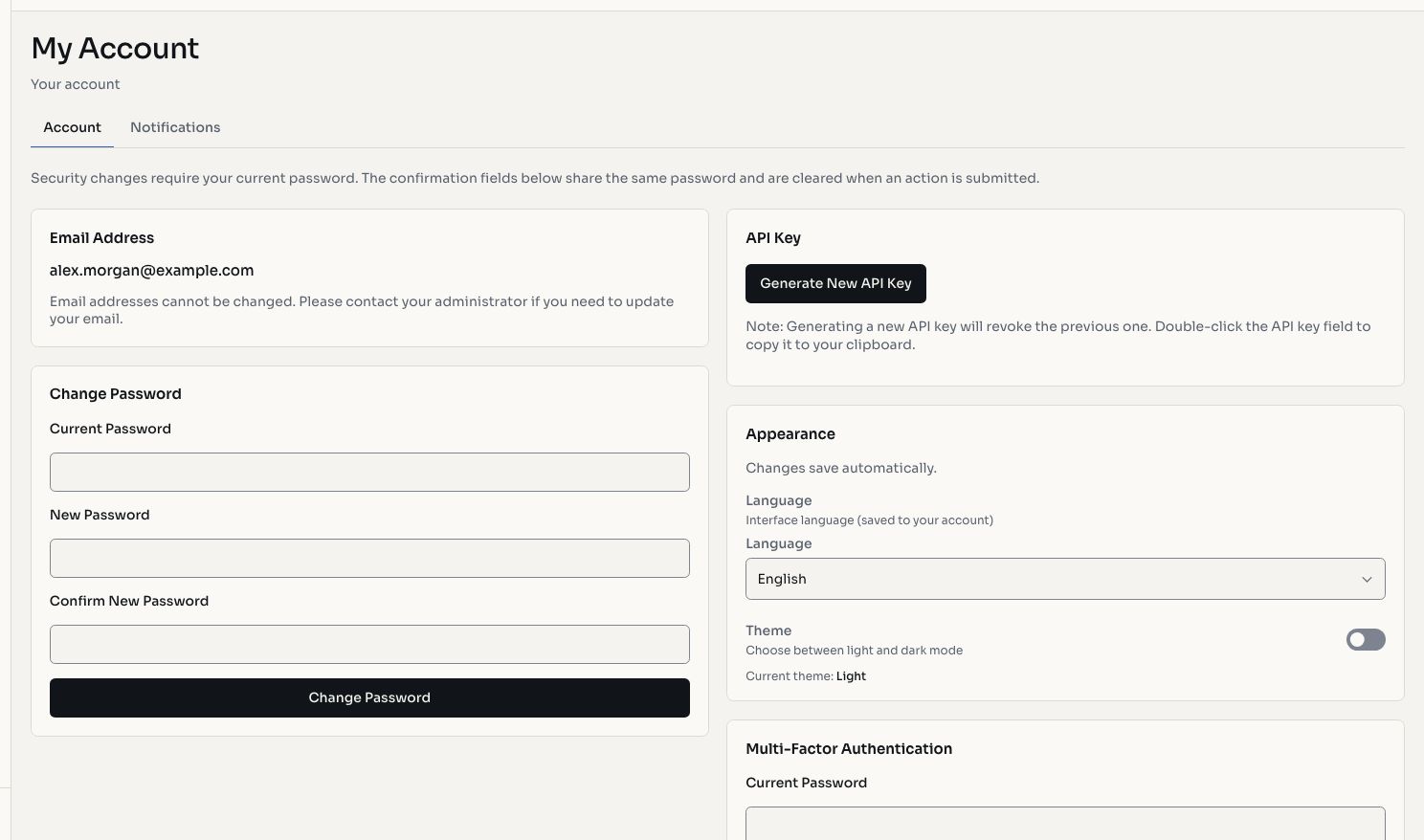
Every user can manage their own account from the My Account page, accessible from the user menu in the top-right corner.
Profile
- View your email address and organization
- Update your display name
Security
- Change password: update your password at any time
- MFA: enable, disable, or reset your multi-factor authentication setup
API Key
Generate an API token for programmatic access. See Authentication for usage details.
WARNING
API keys are shown only once at generation time. Store them securely. Generating a new key invalidates the previous one.
Appearance
- Theme: toggle between dark and light mode
- Language: switch between English and Portuguese
Notifications
Configure your notification preferences from the dedicated tab. See Notifications for details.