
AI Runs
An AI run is a single assessment execution associated with a project. It records the configuration used for that execution, its progress, and its results. The project holds the broader engagement, included scope, exclusions, team access, and issue history.
Use separate runs when the assessment objective changes or when you need a new review after remediation. A previous run remains useful evidence of what was reviewed at that time; it does not establish the current state of an application that has since changed.
Choose the right kind of run
Do not confuse the interaction mode with the assessment intent or execution location. For example, an automatic run can use Balanced intent and a connector for a private environment. A checklist can organize the review of that same environment. Purple team validation through a plugin has a different purpose from discovering application findings.
| Your objective | Relevant choice | Review afterward |
|---|---|---|
| Run a configured assessment with periodic operator review | Automatic | Evidence, candidates, and incomplete work |
| Keep an operator involved throughout the review | Assisted | Operator decisions, observations, and resulting findings |
| Follow a repeatable set of review objectives | Checklist | Each item's outcome and supporting evidence |
| Review an environment that requires local network access | Local/private-network access | Connectivity, scope, and assessment results |
| Evaluate detection and response as a coordinated exercise | Purple team through a plugin | Execution evidence, telemetry, detections, and response |
Interaction modes
Automatic
The run follows its configured profile without continuous chat input. The operator still defines the engagement context, reviews progress, and evaluates the resulting candidates. Automatic means that the configured review can proceed unattended; it does not mean unlimited coverage, guaranteed findings, or automatic acceptance of every observation.
Use it for a defined baseline review, a repeat assessment, or an assessment that can proceed within an established scope and budget. Check prerequisites and available credits before starting. See Automatic Assessments.
Assisted
A provider operator guides the assessment through chat. This is useful when the review requires interpretation of application behavior, clarification of context, or decisions about which observations need further review.
Keep directions within the project's existing scope and permissions. Chat does not expand project access. An operator can take over an active automatic run when the corresponding control is available. Availability differs between provider and client accounts.
Checklist
The run follows an available checklist instead of relying only on a broad assessment objective. The checklist expresses what should be reviewed and makes coverage easier to compare across runs.
A curated checklist groups specific items into bundles. A coverage template organizes review by categories. Read the outcome of each item together with its evidence: reviewed without a finding, finding identified, not applicable, and blocked work have different meanings. Do not interpret an unreviewed item as a passed control.
The selector appears only when an appropriate checklist is available. A checklist helps structure evidence; it does not by itself establish compliance with an entire standard.
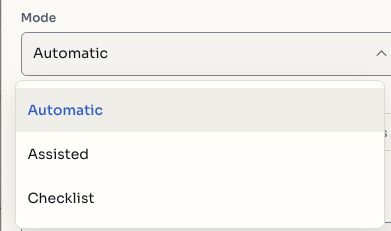
Screenshots use fictional demonstration data.
Assessment intent
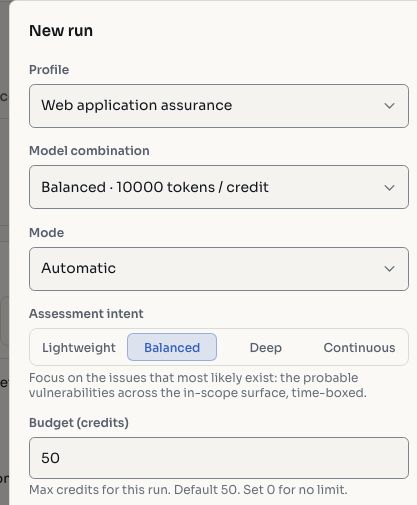
Intent describes how thorough the configured review should be. It is separate from the choice of Automatic or Checklist. Assisted runs use operator direction and do not present this depth selector.
| Intent | Intended emphasis | Planning consideration |
|---|---|---|
| Lightweight | A narrower initial review | Useful when time or credits are limited; expect less coverage. |
| Balanced | A bounded review of the most relevant areas | Review the resulting coverage and any blocked areas before deciding whether more work is needed. |
| Deep | More detailed review of the configured environment | Allow more time and credits; increased effort still does not guarantee complete coverage. |
| Continuous | Repeated assessment cycles within configured limits | Set a deliberate budget and monitor changes, coverage, and resource use. |
Continuous intent is not a recurring calendar schedule. A schedule creates separate runs at configured times; Continuous applies to the work within one run. Neither removes the need to review results.
Profiles and model combinations
A profile defines the assessment's configured stages and review objectives. The project category and organization configuration determine which profiles are offered. Choose a profile appropriate for the environment and the purpose of the engagement.
A model combination, when offered, selects the available AI configuration for that run. It can affect credit use and the way the profile processes its work. Do not assume that a more expensive configuration guarantees more valid findings. Compare outcomes using evidence and coverage, rather than cost alone.
Scope, access, and prerequisites
Before creating a run, review included scope, exclusions, project permissions, relevant environment context, and credits. An empty included scope means the assessment cannot run. An available profile does not make every possible target part of the engagement.
For a client, the project must allow client AI runs. For a provider, confirm that the selected project belongs to the intended authorized engagement. If the environment requires private-network connectivity, review Local Runs. If it requires a plugin, check that the organization has the corresponding feature enabled.
Budgets and stopping
The credit budget limits the resources available to a run. A value of 0 means no explicit per-run credit cap in the start form; it does not mean free usage. Available organization credits and other applicable limits still matter.
A run can stop before all planned work is complete because of its budget, an operator action, a missing dependency, or an execution error. Review the final status and the work already recorded. Stopping retains existing observations and findings; it does not certify the remaining scope.
Follow progress
Use the run selector to open the execution you want to review. Check its status, current stage, credit usage, recorded observations, and coverage information. The history of a completed run remains available separately from a newer run.
Distinguish waiting for prerequisites from active work, completion, cancellation, and failure. A connectivity problem or absent prerequisite is a reason to investigate setup, rather than evidence that the environment has no security issues.
For available controls and the start procedure, see Run Modes.
Interpret the outcome
| Outcome | What it tells you | What it does not tell you |
|---|---|---|
| Candidate finding | An observation needs evidence review | That the issue is already accepted or verified by a person |
| Accepted finding | A reviewer has accepted the issue into the project workflow | That remediation has been completed |
| Reviewed without a finding | The recorded review did not establish an issue | That every possible issue was excluded |
| Blocked or incomplete coverage | Part of the intended review could not be completed | That the affected area passed |
| Completed run | The execution finished | That all candidates are valid or all coverage is complete |
Review candidate evidence, project context, and affected assets before deciding. Accept valid candidates, reject unsupported ones, or merge duplicates when appropriate. Keep the run outcome separate from issue status: an execution can be complete while its accepted findings remain open.
Repeat assessments and compare runs
Record what changed between runs: scope, environment version, profile, checklist, intent, budget, and access conditions. Compare coverage and evidence alongside the number of findings. Fewer findings may reflect remediation, different scope, incomplete work, or different access.
For remediation follow-up, review the affected finding and use the project's retest workflow. A new run can provide additional observations, but its completion alone should not close an issue.
Provider and client responsibilities
Providers make appropriate profiles and project permissions available, coordinate environment access, and review the engagement's objectives. Clients review their authorized project, available credits, results, and remediation work. The buttons shown to each account can differ.
If a profile, checklist, local-access option, or plugin feature is missing, ask the provider or organization administrator to check availability. Do not substitute a different execution method without reviewing the engagement requirements.