
Connect a cloud account
Connect your own AWS, Azure, or GCP account to let Hashiro inspect its configuration. You need permission to manage cloud connections in your organization and permission to create a read-only scanning identity in the cloud account.
Open the connection form
- Open Cloud Security in the sidebar.
- Use the account connection action to open the form.
- Select AWS, Azure, or GCP.
- Fill in the account identifiers and credentials below.
- Click Connect and check the result.
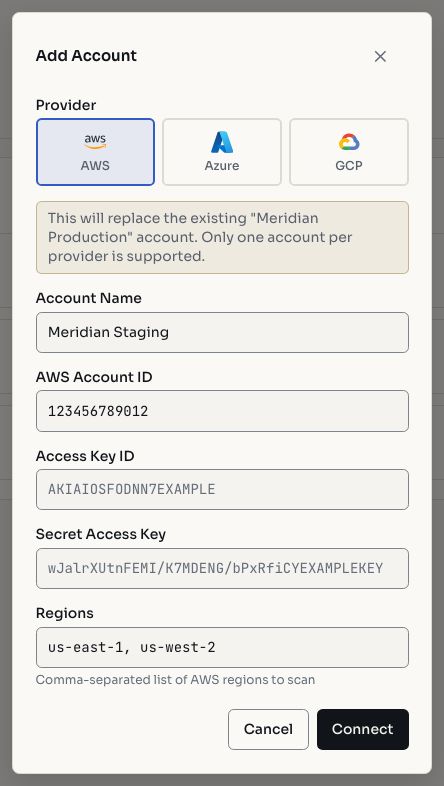
Screenshots use fictional demonstration data.
A successful connection does not mean a security assessment has completed. Check the latest assessment time and results separately.
AWS
The current connection form accepts:
| Field | Value |
|---|---|
| Account ID | The 12-digit AWS account identifier |
| Access Key ID | Access key for the scanning identity |
| Secret Access Key | Secret paired with that key |
| Regions | Comma-separated regions to assess, when specified |
Create a dedicated IAM identity for read-only security inspection. AWS provides a SecurityAudit managed policy for configuration inspection. The exact required read permissions depend on the services assessed; ask your cloud administrator to review the scanner's requirements rather than granting unrestricted write access.
Generate an access key, copy its ID and secret into the form, and keep the secret in your organization's secret-management system. The visible form does not provide a role-ARN setup wizard. Role-based scanning configuration, when used, is handled through the appropriate administrative setup.
Azure
Create an application and service principal in Microsoft Entra ID. Assign the appropriate read access on the subscription, such as the Azure Reader role for resource inspection, with additional security read permissions only when needed. See Azure built-in roles.
The form requires:
| Field | Value |
|---|---|
| Tenant ID | Directory identifier |
| Subscription ID | Subscription being assessed |
| Client ID (App ID) | Registered application's identifier |
| Client Secret | Secret value, not the secret's identifier |
Record the expiry date and rotate the secret before it expires. Use the subscription where the service principal has been granted access.
GCP
Create a dedicated service account in the project to assess and grant the read permissions required for resource and security configuration inspection. Review Google Cloud IAM roles for the relevant services.
The form requires Project ID and the service-account JSON key. Paste the complete JSON object. If your organization prohibits service-account key creation, coordinate an approved setup with your cloud administrator. Follow Google's key-management guidance.
Validate and manage the connection
From the connected-account list, open the account's action menu and choose Revalidate after rotating credentials or changing permissions. Check the resulting connection state and validation timestamp. The menu can also remove a connection where your permissions allow it.
Troubleshooting
| Symptom | What to check |
|---|---|
| Invalid credentials | Correct account identifiers, key/secret pairing, and expiry |
| Access denied | Read permissions on the exact account, subscription, or project |
| No assessment results | A connection can exist before the first completed assessment |
| Revalidation fails after rotation | Update the stored connection credentials through the available management workflow |
| Cloud action unavailable | Organization license and cloud-management permissions |
Credentials are encrypted at rest and are not returned in ordinary user-facing connection details. Do not place them in issue descriptions, public links, or project reports.