
Misconfigurations
Hashiro detects security misconfigurations across your cloud resources by scanning against established security benchmarks and best practices. Each misconfiguration represents a gap in your cloud security posture that could be exploited or that violates compliance requirements.
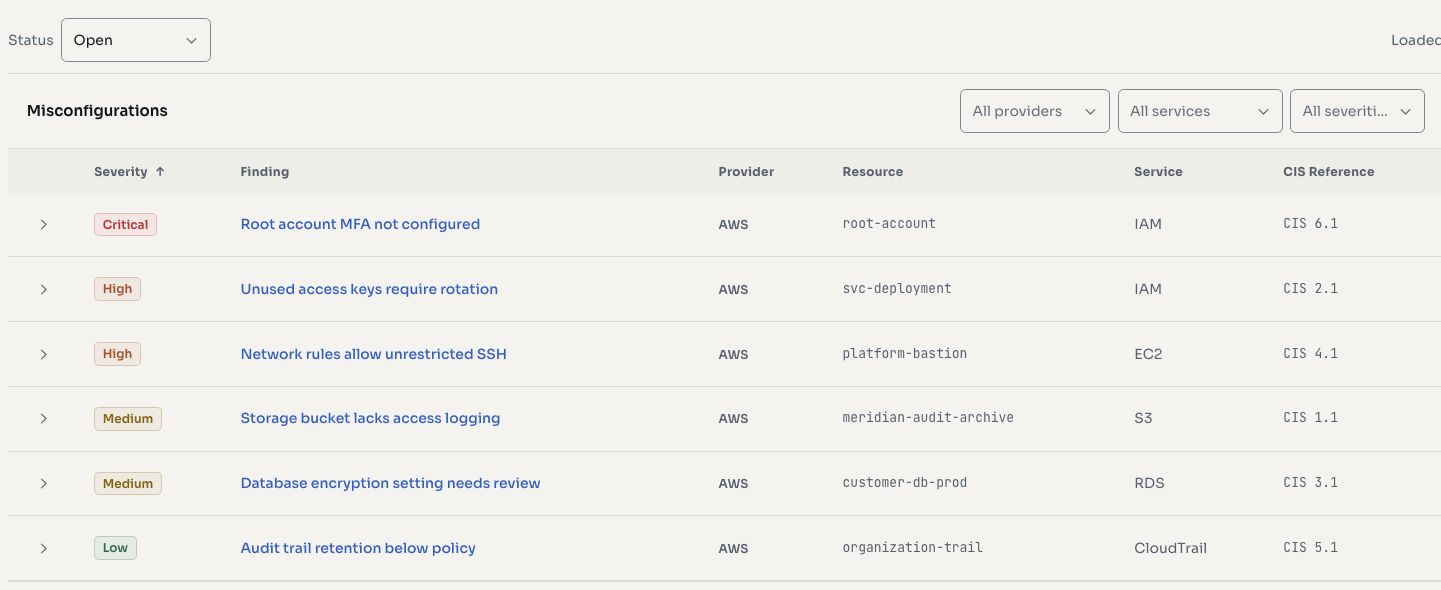
Screenshots use fictional demonstration data.
Misconfiguration Table
Misconfigurations are displayed in a filterable, sortable table:
| Column | Description |
|---|---|
| Title | Description of the misconfiguration |
| Provider | AWS, Azure, or GCP |
| Severity | Critical, High, Medium, or Low |
| Category | IAM, Network, Data Protection, or Logging |
| Status | Open, Resolved, or Suppressed |
| CIS Reference | Associated CIS benchmark control |
| First Detected | When the misconfiguration was first found |
Severity Levels
| Severity | Description |
|---|---|
| Critical | Immediate risk of data exposure or unauthorized access (e.g., public S3 buckets with sensitive data, root account without MFA) |
| High | Significant security gap to address promptly (e.g., overly permissive security groups, unencrypted databases) |
| Medium | Moderate risk for regular remediation cycles (e.g., missing logging, unused credentials) |
| Low | Minor hardening recommendations (e.g., tagging compliance, non-critical best practices) |
Categories
Identity & Access Management (IAM)
- Overly permissive IAM policies
- Root account usage without MFA
- Unused or stale access keys
- Missing password policies
- Cross-account access misconfigurations
Network
- Overly permissive security groups (0.0.0.0/0 ingress)
- Public-facing resources that should be private
- Missing network segmentation
- Unencrypted traffic between services
- Missing VPC flow logs
Data Protection
- Unencrypted storage (S3, EBS, RDS)
- Public bucket policies
- Missing encryption in transit
- Insecure key management
- Missing backup configurations
Logging & Monitoring
- Disabled CloudTrail or equivalent audit logging
- Missing flow logs
- No alerting on security events
- Insufficient log retention
- Missing access logging on storage buckets
Status Tracking
- Open: the misconfiguration is active and has not been addressed
- Resolved: the misconfiguration has been remediated (either manually confirmed or auto-resolved by scan reconciliation)
- Suppressed: the misconfiguration has been acknowledged but intentionally not remediated (e.g., accepted risk)
Scan Reconciliation
When Hashiro runs a new scan, it compares current findings against previous results:
- New findings are created with
Openstatus - Findings no longer detected are automatically moved to
Resolved(the underlying resource was fixed or removed) - Persistent findings remain in their current status
This reconciliation ensures your misconfiguration list always reflects the current state of your cloud infrastructure.
Misconfiguration Detail
Click a misconfiguration to see:
- Full description of the security issue
- Affected resource (ARN, resource ID)
- CIS benchmark reference
- Remediation guidance with step-by-step instructions
- Risk context: why this misconfiguration matters and what an attacker could do
Filtering
Filter misconfigurations by:
- Severity: Critical, High, Medium, Low
- Category: IAM, Network, Data Protection, Logging
- Provider: AWS, Azure, GCP
- Status: Open, Resolved, Suppressed
TIP
Start with Critical IAM and Network findings. These represent the highest risk to your environment.
Change a finding's status
- Open Cloud Security and find the misconfiguration table.
- Filter by the status or severity you want to review.
- Open the finding's title to view its detail page.
- Read the affected resource and remediation guidance.
- Use the status selector near the top of the page to choose Open, Resolved, or Suppressed.
- Check the confirmation message and updated status. If saving fails, the selector returns to the previous value and displays an error.
Use Resolved after remediation is confirmed. Use Suppressed for a deliberately accepted or excluded finding. Changing this label does not modify the cloud resource. The next assessment may reconcile the finding again according to the scanner's rules.
Return to the table and adjust its status filter if the finding disappears from the current view after the change. Editing requires the organization's cloud permissions; viewing a finding alone does not grant status-change access.