
Run Modes
Choose a mode when starting an AI assessment from a project's AI Pentest tab. Available controls depend on your organization's license, your permissions, the project's client settings, and the assessment profiles and checklists configured for the project.
For a detailed comparison of interaction modes, intent, execution location, and outcomes, see AI Runs. Local access is explained in Local Runs, and plugin-based defensive validation in Purple Team Runs.
Choose a mode
| Mode | How you work | Availability |
|---|---|---|
| Automatic | The assessment follows the selected profile and reports progress for you to review. | Providers and clients whose project allows client AI runs. |
| Assisted | A provider operator guides the assessment through chat and reviews its observations. | Providers with the relevant project permissions. |
| Checklist | The assessment follows a selected checklist and records item coverage. | Shown when an available checklist is configured. |
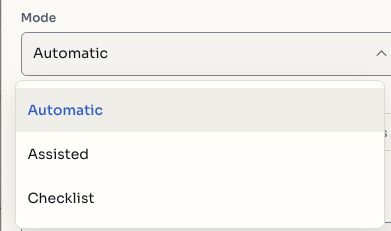
Screenshots use fictional demonstration data.
Client accounts normally start automatic assessments and may not see a mode picker. If a control is absent, ask your provider to check your project access and available profiles.
Start an assessment
- Open Projects and choose the project you are authorized to assess.
- Review its included scope and exclusions. Without included scope, the assessment cannot run. Confirm that the project has the required access and an available credit balance.
- Open AI Pentest, then click New run.
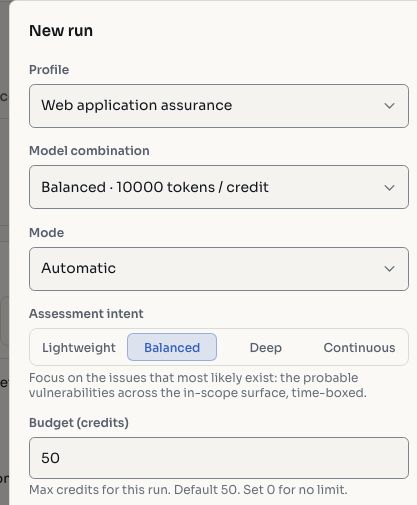
- Select a Profile. Only profiles available for the project's category are listed.
- Choose a Model combination if that field is shown.
- Choose Automatic, Assisted, or Checklist when the mode picker is available. For Checklist, also select the checklist.
- For Automatic and Checklist, choose the coverage depth: Lightweight, Balanced, Deep, or Continuous. Continuous repeats the configured workflow until its limits are reached; set an appropriate credit budget. Assisted does not use the depth selector.
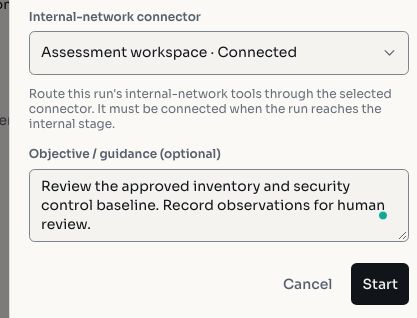
- Set the credit budget, choose a connector if the project requires one, and add instructions describing the permitted scope and review objectives.
- Review the configuration, then click Start. The execution enters the queue and its progress appears in the project.
Monitor and review
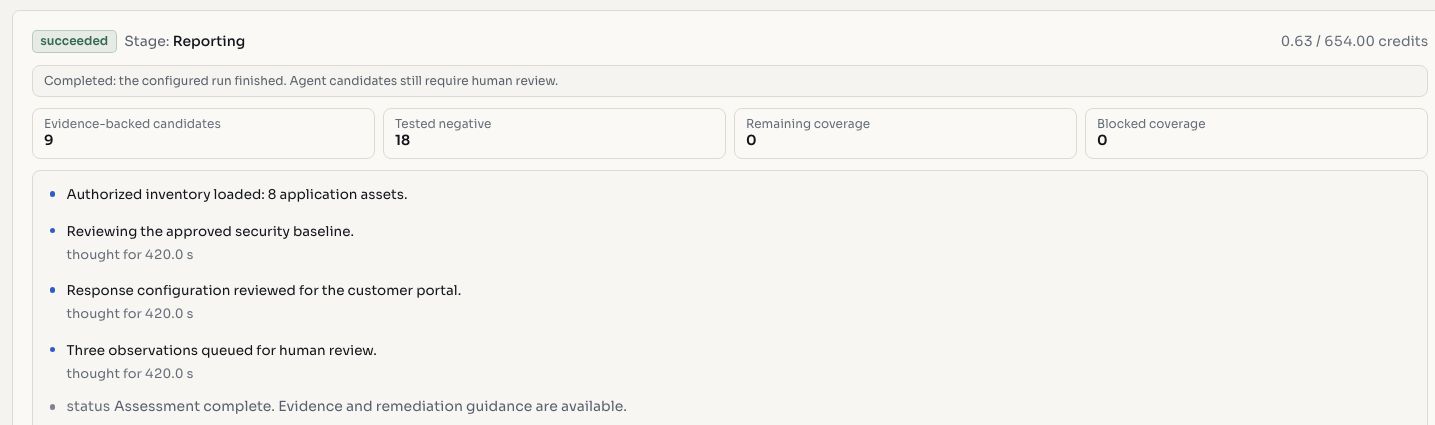
Select a run to see its status, current stage, timeline, and recorded observations. Automatic runs follow the profile without continuous chat input. Assisted runs let the operator provide direction through chat. Checklist runs record progress against the selected items.
Run controls
The controls shown depend on the run's status, mode, and your permissions. Completed runs retain their history for review.
| Control | Purpose |
|---|---|
| Stop | Stop an active run while retaining findings already recorded. |
| Skip stage | Request the next configured stage when available. |
| Take over | Take control of an active automatic run through Assisted mode when permitted. |
| Redo | Repeat a selected part of the assessment. |
| Chat | Provide direction in Assisted mode. |

Review candidate findings before accepting them. Link candidates to existing issues or create new records as appropriate, then track remediation through the issue lifecycle. See automatic assessments for client access and prerequisites.