
Scope configuration
Open Attack Surface > Config to inspect the monitored targets and exclusions for your organization.
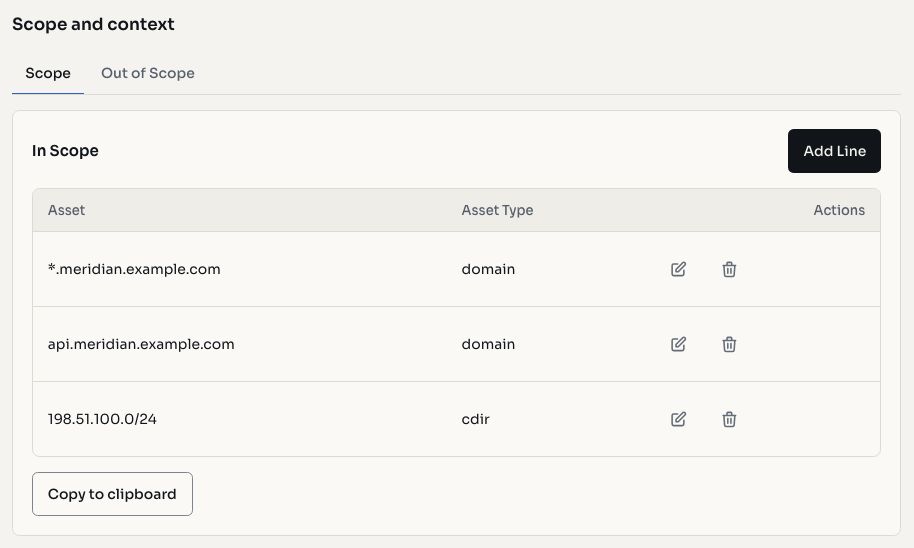
Screenshots use fictional demonstration data.
In-scope targets
By default, providers manage in-scope targets. If your account has the in-scope controls, add, edit, or remove the targets authorized for monitoring. Clients can review the configured scope and request changes from their provider when editing is unavailable.
| Type | Example |
|---|---|
| Domain | example.com |
| Wildcard | *.example.com |
| IP address | 203.0.113.10 |
| CIDR range | 203.0.113.0/24 |
- Open the In scope section.
- Add a row and select the target type.
- Enter the domain, wildcard, IP, or range.
- Save and review the resulting list.
Only include targets your organization is authorized to monitor. Editing controls depend on your account permissions and how the service is provisioned.
No scope means no monitoring
An empty in-scope list means the surface monitor is not running against any targets. An exclusion alone does not start monitoring. If you see no configured scope, ask the provider to define the monitored targets.
Out-of-scope targets
The Out of scope section is always available for defining exclusions in the organization's surface view. Write controls still depend on your permissions.
- Open Config > Out of scope.
- Add the target to exclude and select its type.
- Save the entry.
- Confirm it appears in the exclusions list.
Exclusions take precedence over included scope. Use them for third-party systems, sensitive targets, or environments that must not be checked. Edit or remove an exclusion only when the monitoring authorization changes.
Review results
Scope changes do not instantly replace existing results. Use Assets, Services, and Issues to inspect collected data and manage findings. Historical records can remain visible after an exclusion is added.